


XML Marker
 Features
 Quick start
- The Tree View
- The Icons
- The Tree Selection Browser
- The subtags table
- Multiple occurrences.
- Unique attributes and subtags.
- Syntax checking
- Tools to modify xml.
- Color-coded text range highlighting
- Navigation
- Indentation
- The Table Selection Browser
- DTD support
- Limitations - please read.
- Use Cases
- Version 2.0 change log
- download
Tools to modify xml.
Use the table views
You can use the table view to modify attributes names, attribute values, and character data. To do this, click on an entry on the table view and type the new value. You can also edit by right clicking and selecting “Edit using editor”.
Limitations: – Fixed in version 2.
- You can’t yet change tag names using the table view.
- XML Marker does not validate the data that is entered using the table views – it just fixes the parse tree and the text. To force validation, modify the text using the text editor – just type a space anywhere.
Using the text wizards.
XML marker has special text wizards to help you easily add new tags and attributes, markup existing text, or commenting out existing text. These dialog are accessible by right clicking in the text editor, and selecting the appropriate task.
For example, the following screenshot shows the “Insert Attribute dialog”.
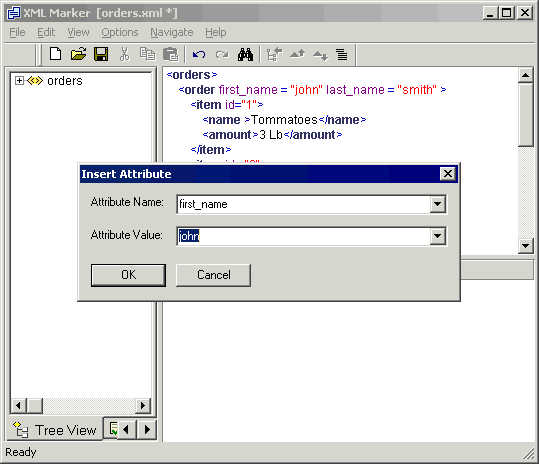
Screenshot: The insert attribute dialog.
Select text using the tree and table views.
To select an XML section, right click the appropriate entry in the tree or table and select “Editor Select”. XML Marker will select the corresponding text in the editor so you can further edit the text by using the text wizards, or the standard text editor operations such as cut and paste.